
Contact the LogPoint Support team in case of any issues. LogPoint Support requires a Support Connection with your LogPoint instance to understand, troubleshoot, and fix the problems. The Support Connection creates an encrypted end-to-end communication channel between the LogPoint instance and LogPoint support.
Before enabling the support connection, make sure that your firewall is not blocking the connection from your LogPoint to the following:
Domain |
Port |
|---|---|
reverse.immune.dk |
1193/UDP |
customer.logpoint.com |
443/TCP |
To enable the Support Connection:
Go to Settings >> System >> System Settings.
Select the Support Connection tab.
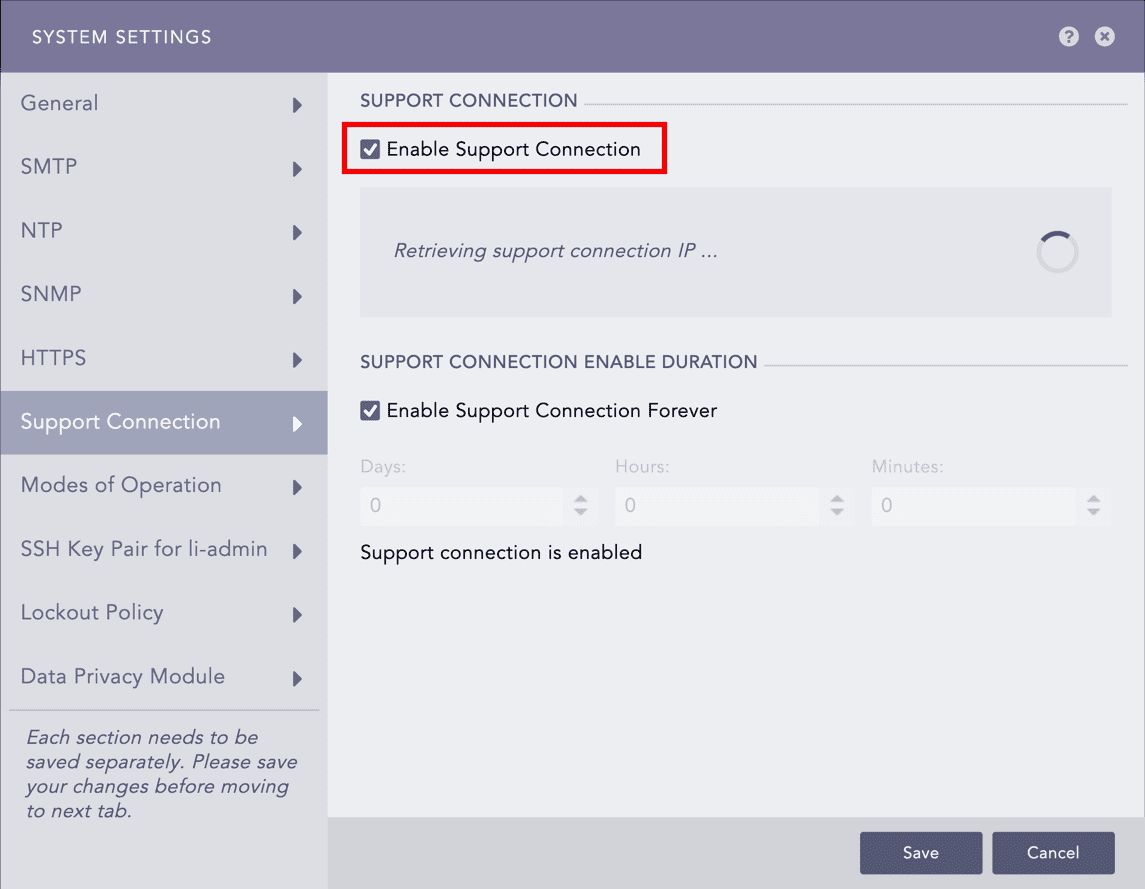
Enabling the Support Connection
Enable Support Connection . LogPoint starts retrieving the support connection IP.
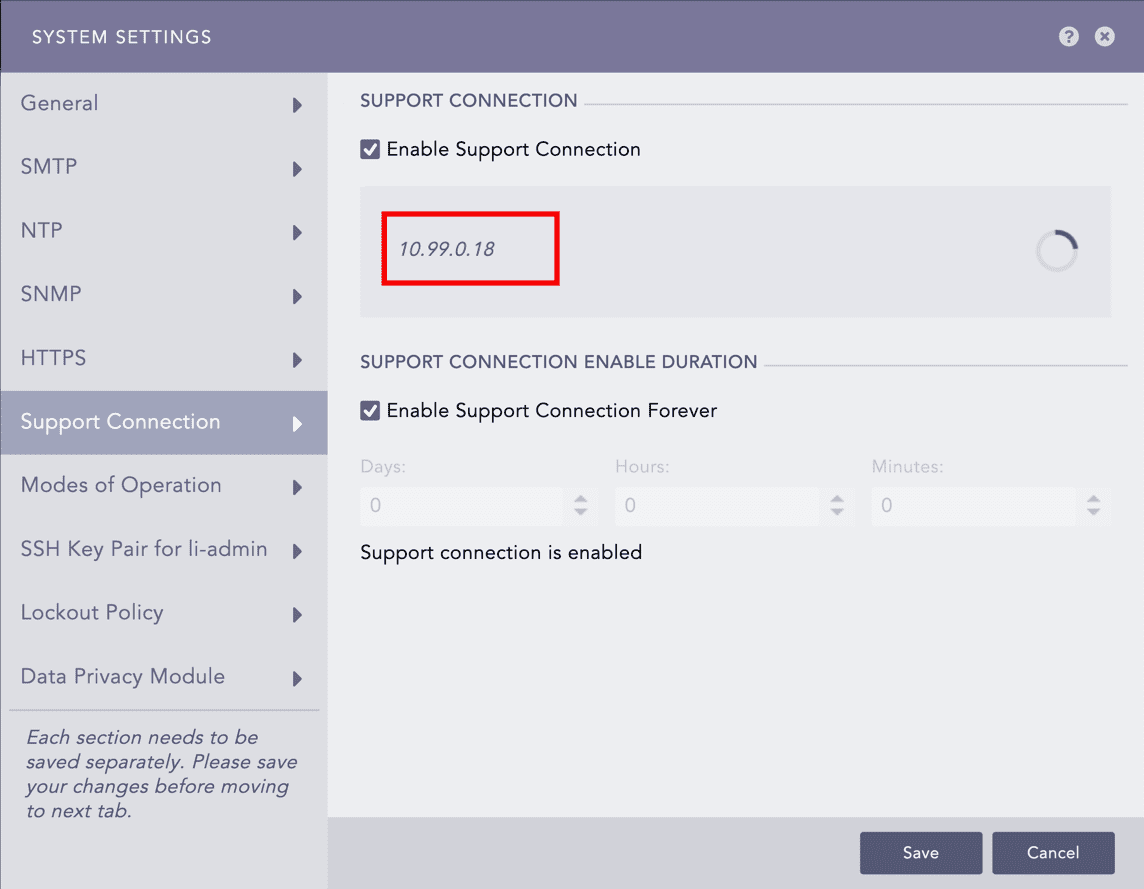
Retrieving the Support Connection IP
Provide the retrieved support connection IP to the LogPoint Support team.
Provide the Support Connection Enable Duration. The support session expires after it exceeds the duration.
Note
Support connection stays enabled if you select 0:0:0 as the time duration, or Enable Support Connection Forever.
Click Save.